Sift
Clean up old screenshots with a simple swipe.
Try the simulator · View code on GitHub
The problem
I take a lot of screenshots: tickets, recipes, maps, chats, and things I want to remember. Most of them are only useful for a short time, but they stay in my Photos app, take up storage, and get harder to organize.
Deleting them one by one takes too much time, so I usually put it off. I wanted an easier way to review only my old screenshots and quickly decide what to keep or delete.
The solution
Sift makes cleaning up screenshots quick.
- See only old screenshots. Sift shows screenshots that are more than 30 days old. Your regular photos and newer screenshots are left untouched.
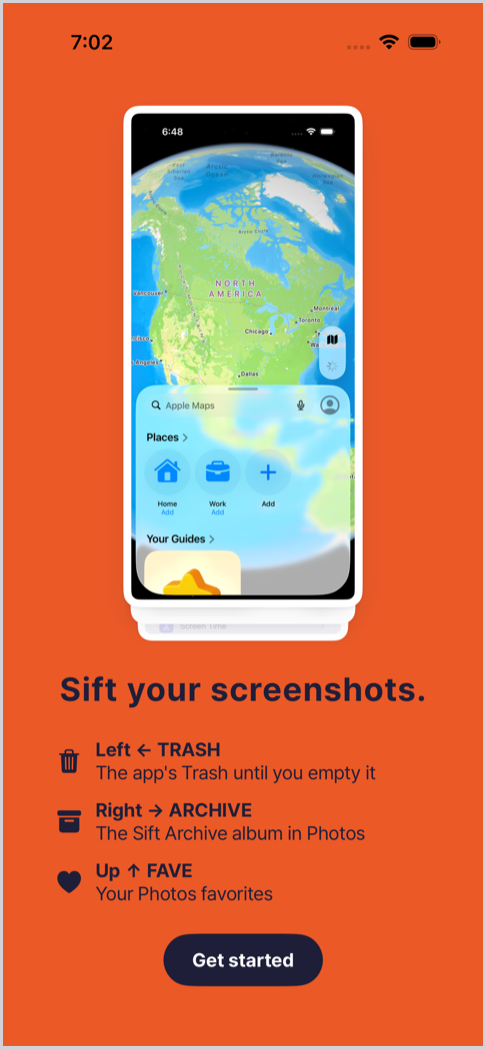
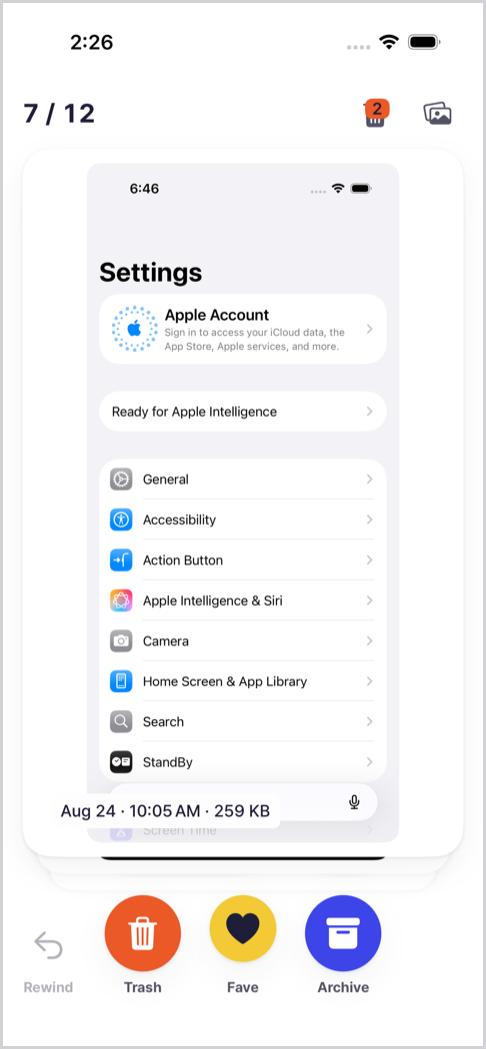
- Swipe to decide. You look at one screenshot at a time. Swipe left to move it to Trash, right to Archive, or up to Favorites.
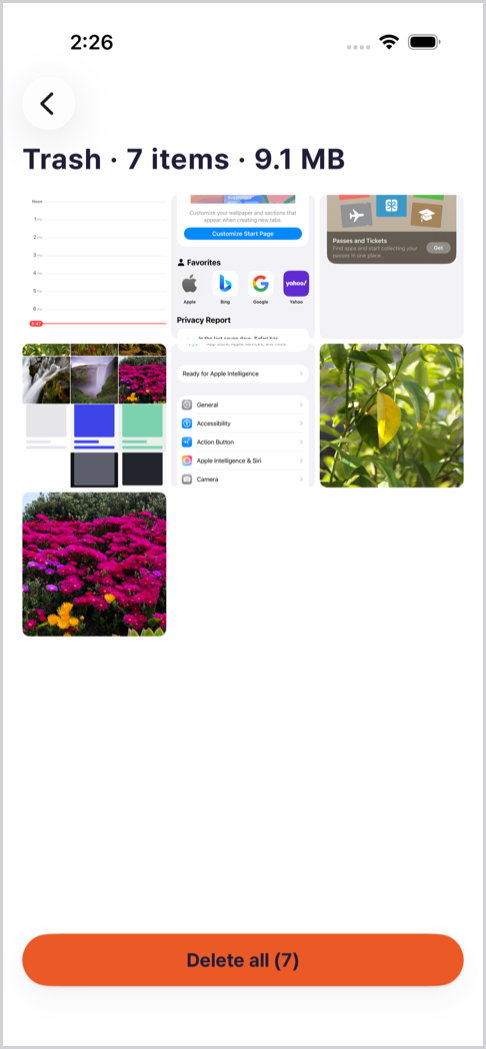
- Delete everything at the end. Screenshots in Trash are not deleted right away. You can look through them first and then delete them all at once.
- Undo mistakes. If you swipe the wrong way, you can undo the last swipe. You can also restore screenshots from Trash before you delete them.
- Get a monthly reminder. Sift can remind you every 30 days when it is time to clean up again.
How it works
Demo video, about 70 seconds, no sound. Open the video
- Start. Open Sift and allow access to your Photos. Sift only looks for screenshots that are more than 30 days old. Your photos stay on your phone.
- Review. Sift shows one screenshot at a time. Swipe left for Trash, right for Archive, or up for Favorites. If you make a mistake, tap Rewind to undo the last swipe.
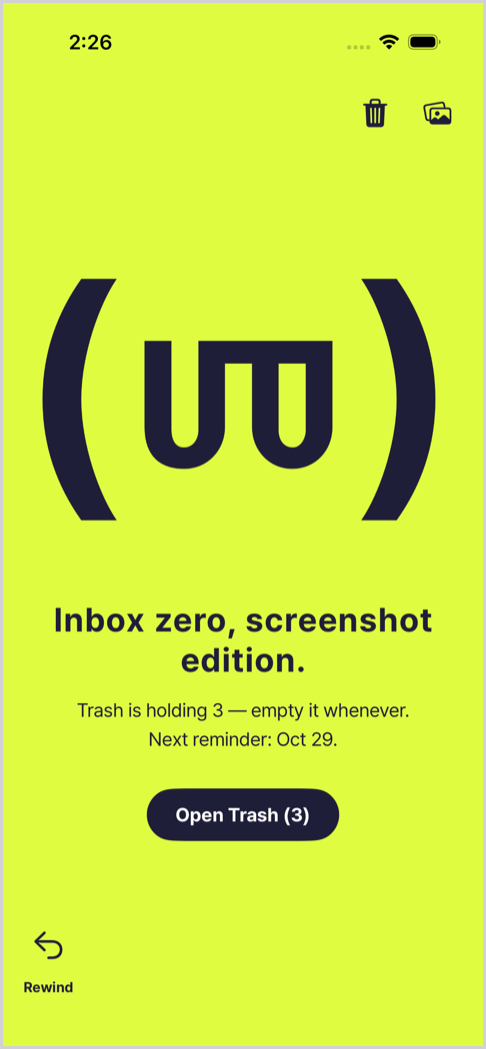
- Finish. When there are no screenshots left to review, you are done. You can also turn on a reminder for your next cleanup.
- Delete. Open Trash to see the screenshots you chose to remove. You can restore anything you want to keep, or delete everything at once.
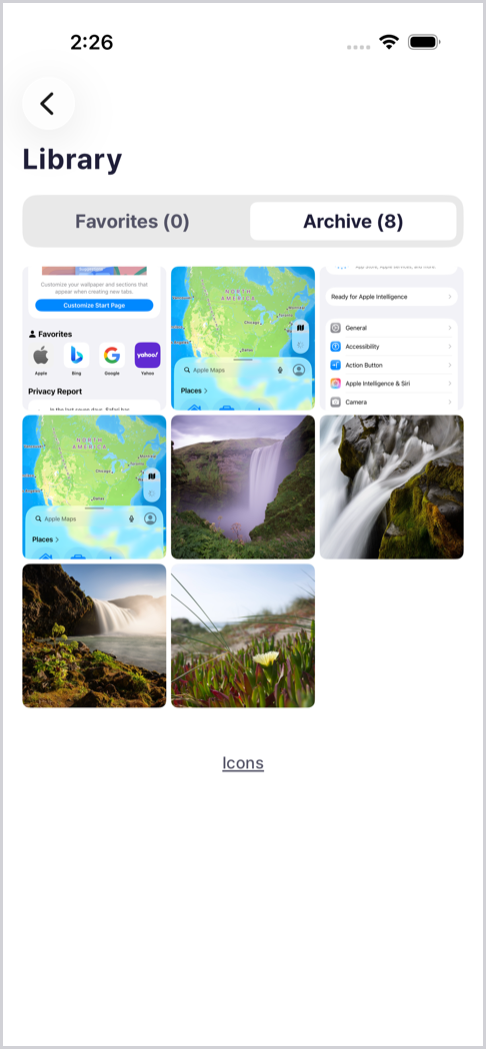
- Find saved screenshots. Open Library to see the screenshots you kept in Favorites or Archive.
Try it
Try the Sift simulator in your browser. Swipe the sample screenshots left, right, or up to see how Sift works. Nothing you do in the simulator is saved or sent anywhere.
Open the simulator on its own page
Course project for IXD 750 Product Innovation, Academy of Art University, 2026.
More: Simulator · GitHub · Design System · App Structure · Developer Notes